How to use Google Drive with SureLink AI (Windows)
Learn how to install Google Drive to your desktop to seamlessly sync your Google files and folders with SureLink AI.
1. Download
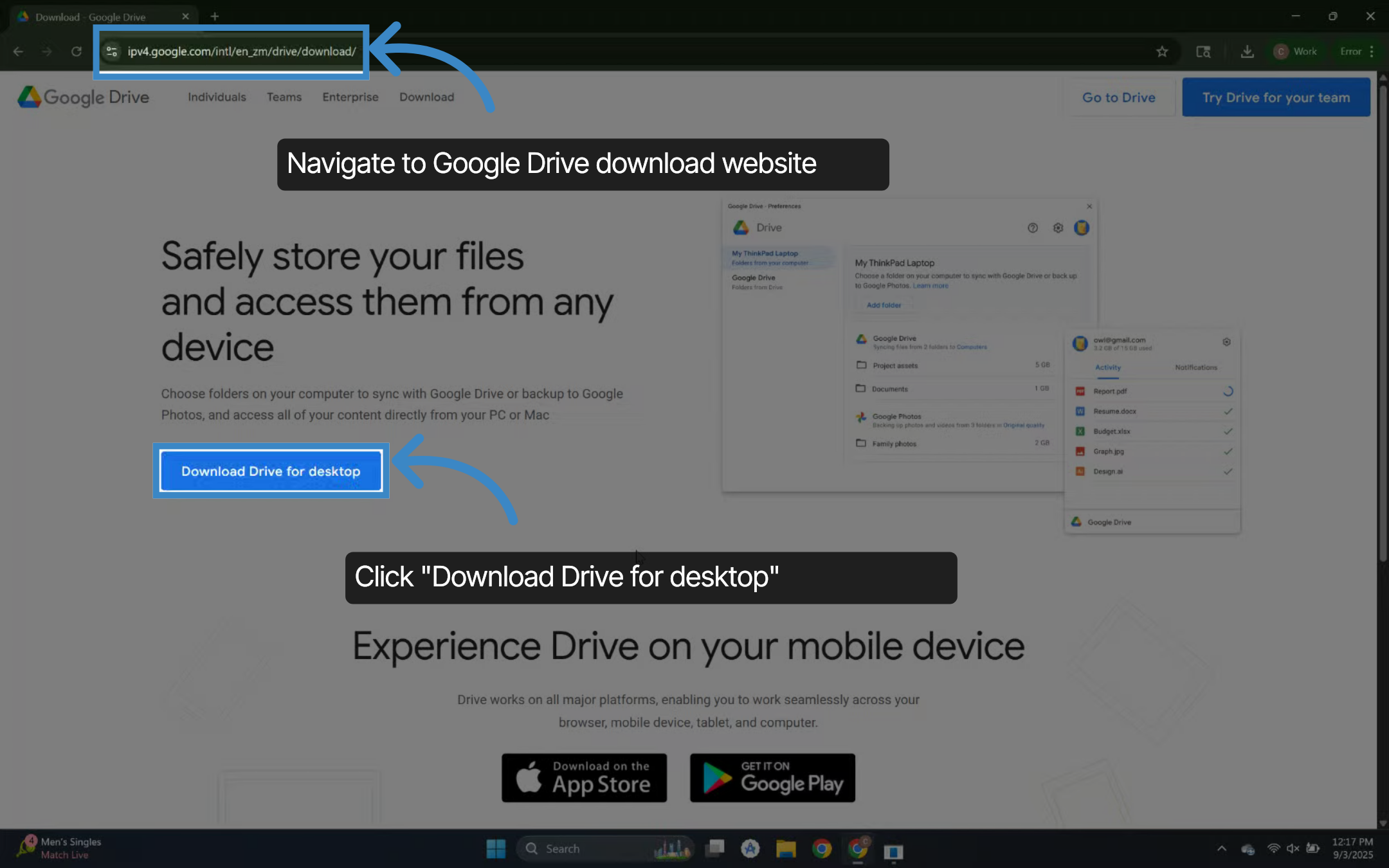
Navigate to the Google Drive download website and then click "Download Drive for desktop"
2. Click here
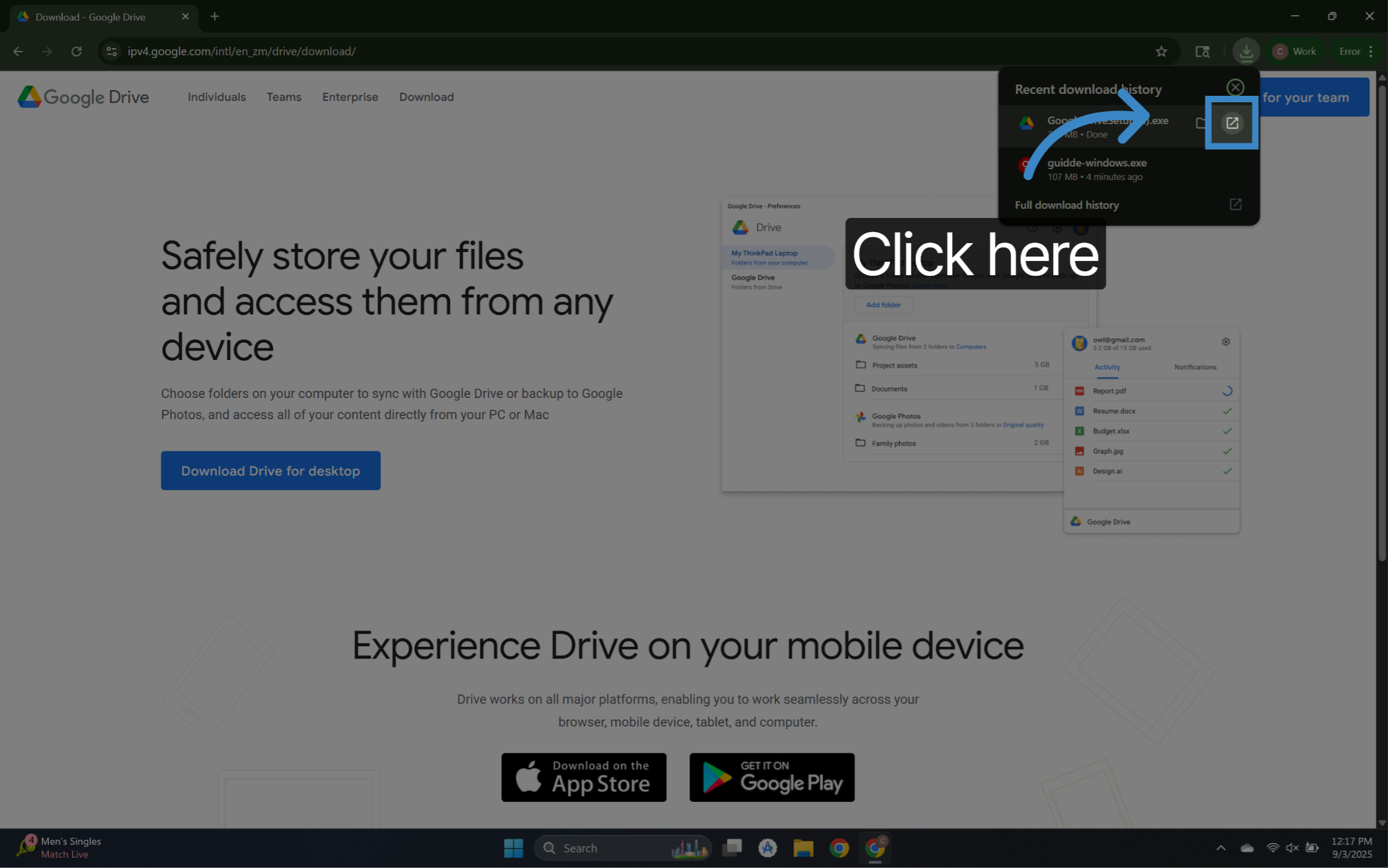
Monitor the download progress to ensure the application is fully downloaded before proceeding.
Open the downloaded installer file to begin the setup process.
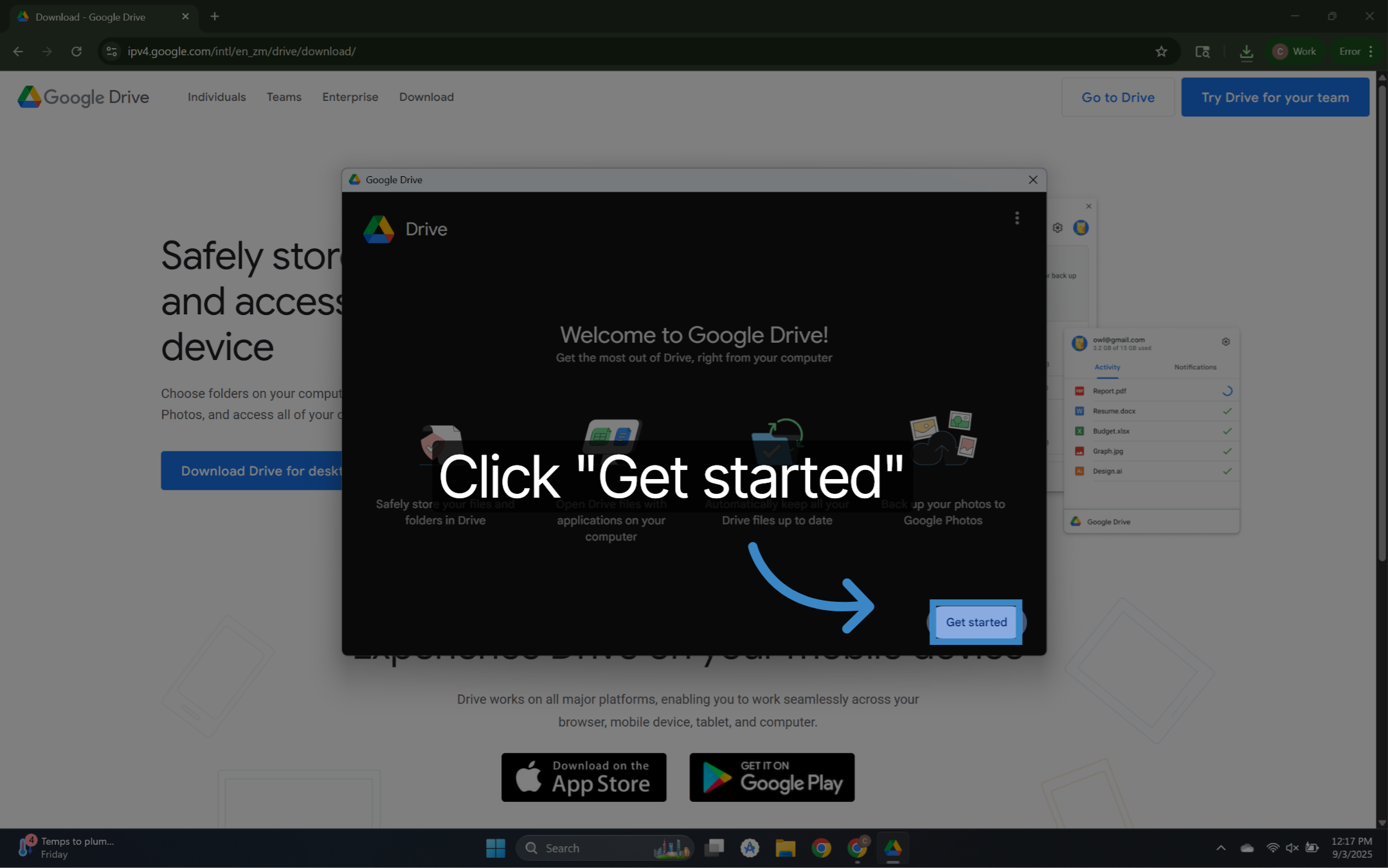
3. Click "Get started"
Start the Google Drive setup by selecting 'Get started' to configure your account.
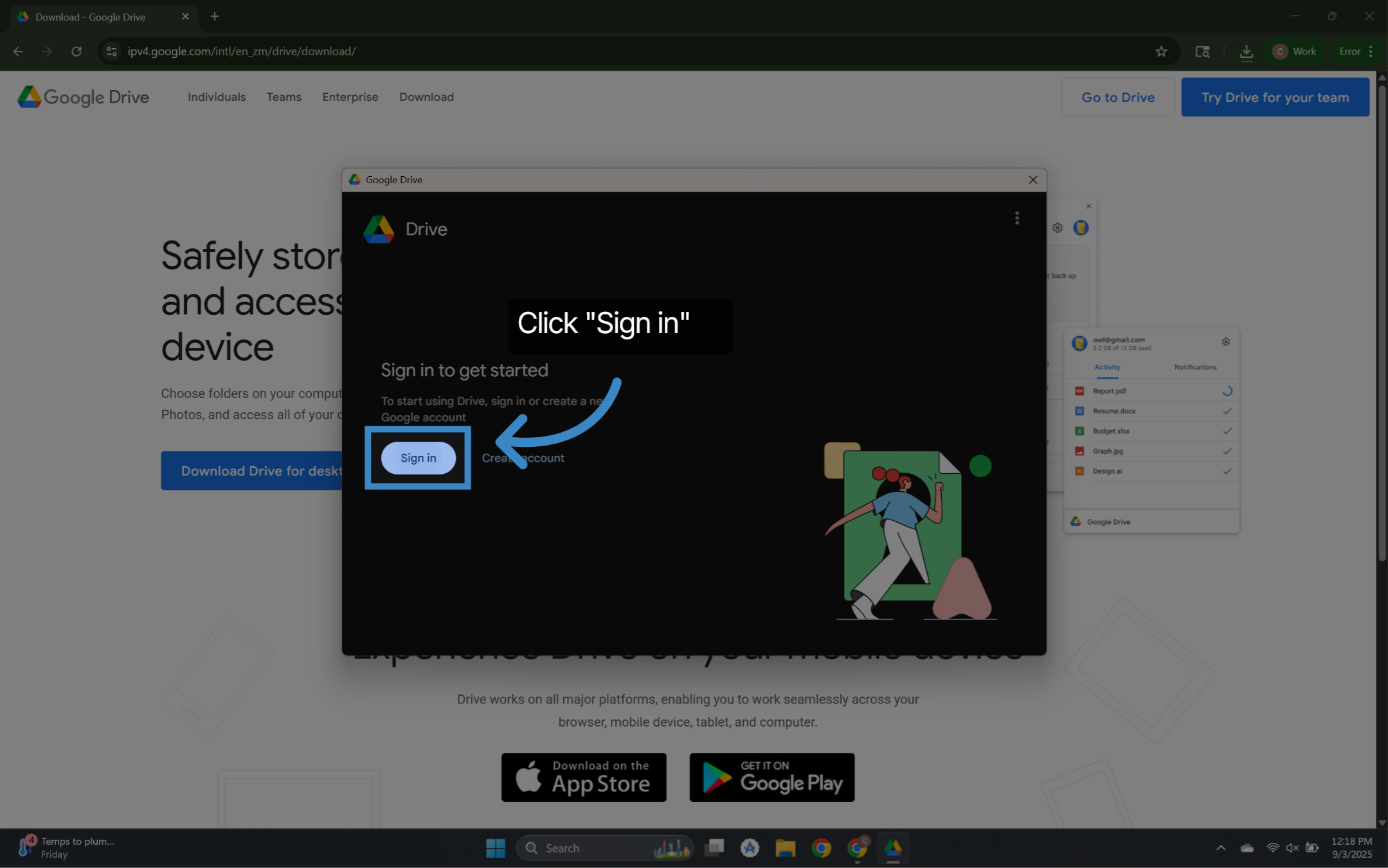
4. Click "Sign in"
Sign in to continue the download process. Continue to follow the Google download instructions to completion.
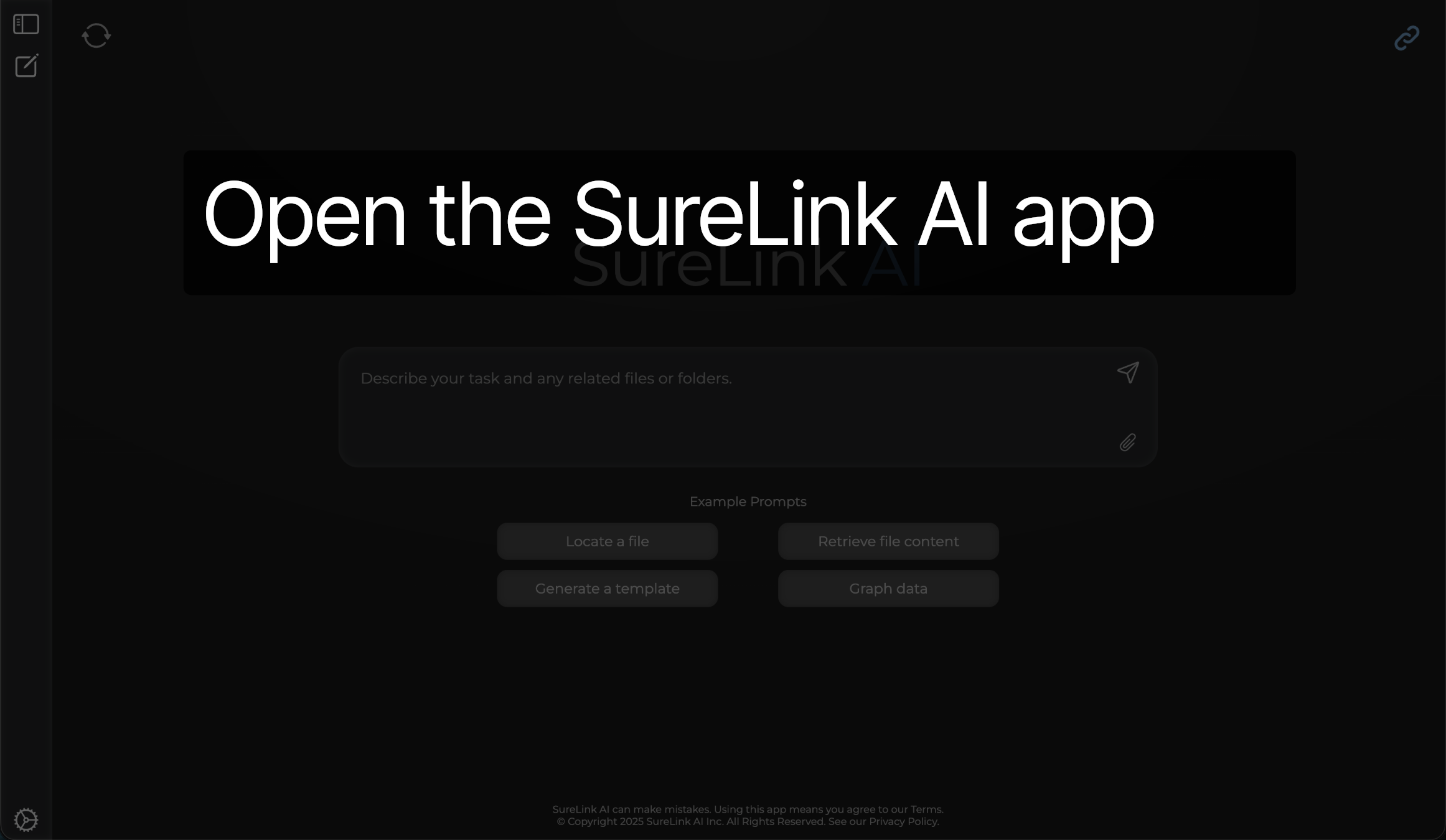
5. Open the SureLink AI app
Open your SureLink AI App
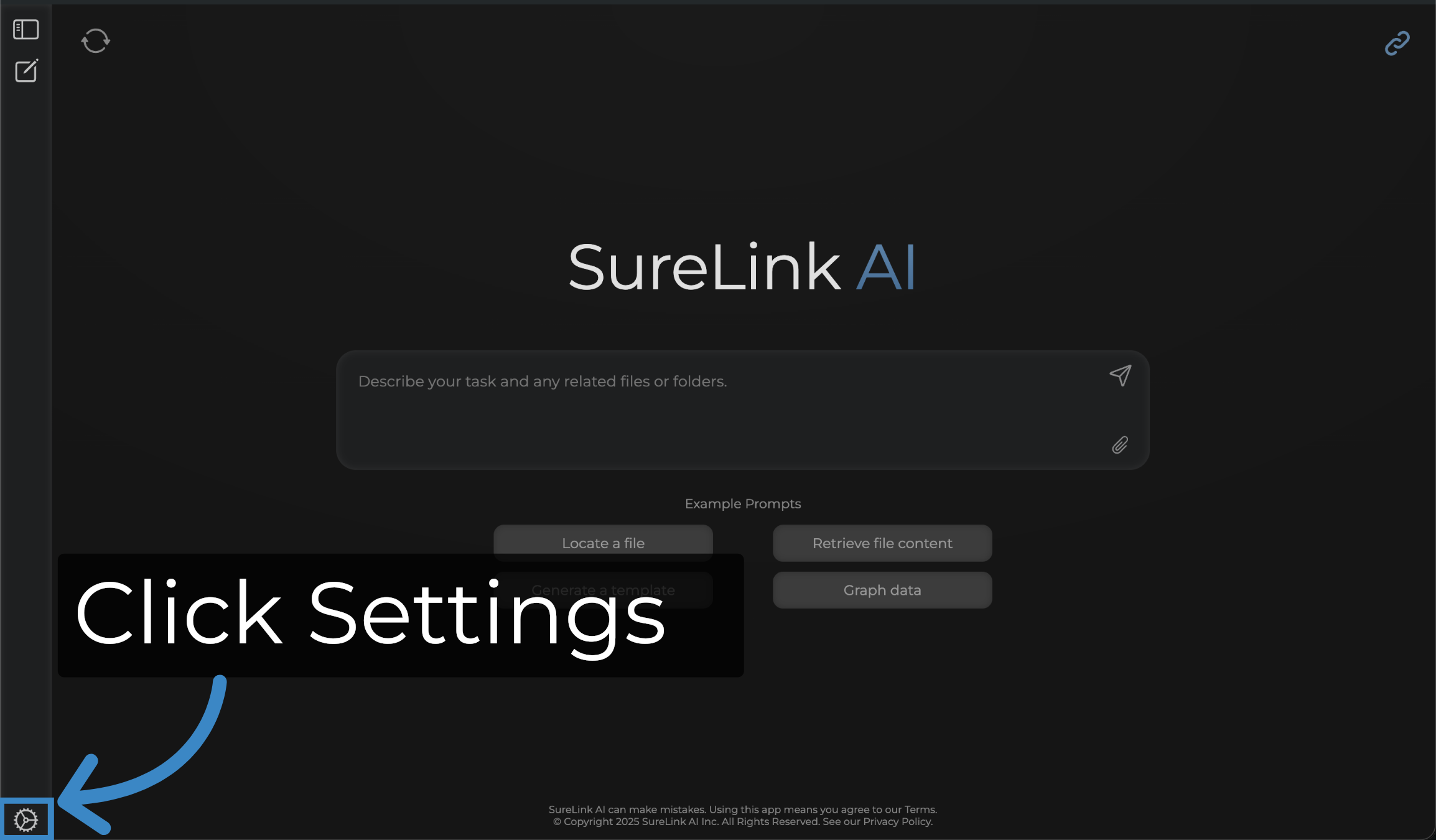
6. Click Settings
Click the Setting button from the sidebar menu.
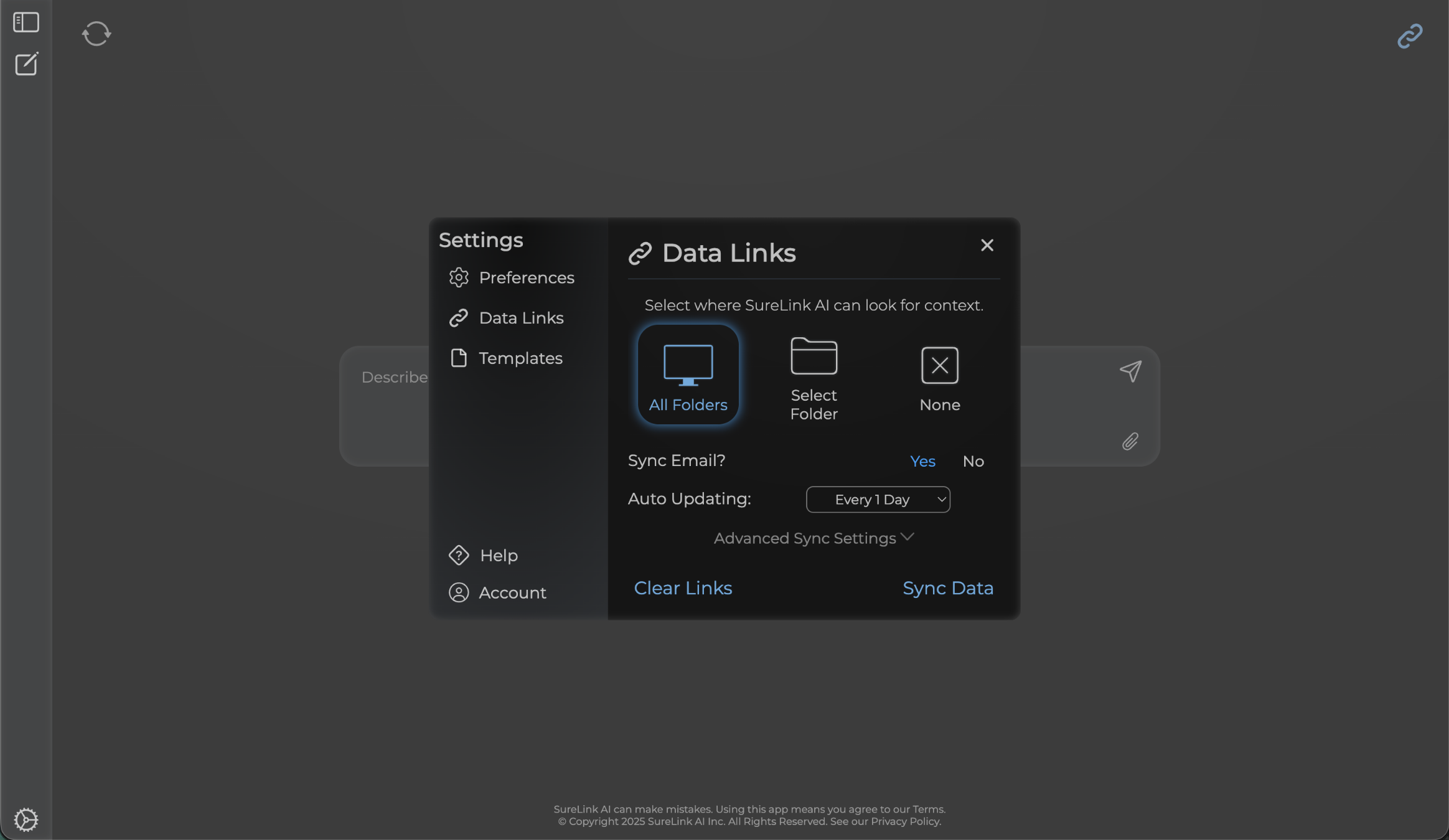
7. Click "Link a Folder"
As you sync data, your Google Drive will now be accessible to SureLink.
This guide walked you through downloading, installing, and setting up Google Drive for desktop with SureLink AI on Windows. Thank you from the SureLink AI team