This guide will walk you through how to prompt with SureLink AI and show you some examples.
1. Prompting
Let's start by asking SureLink AI some questions through prompting. We will start by looking for a file.
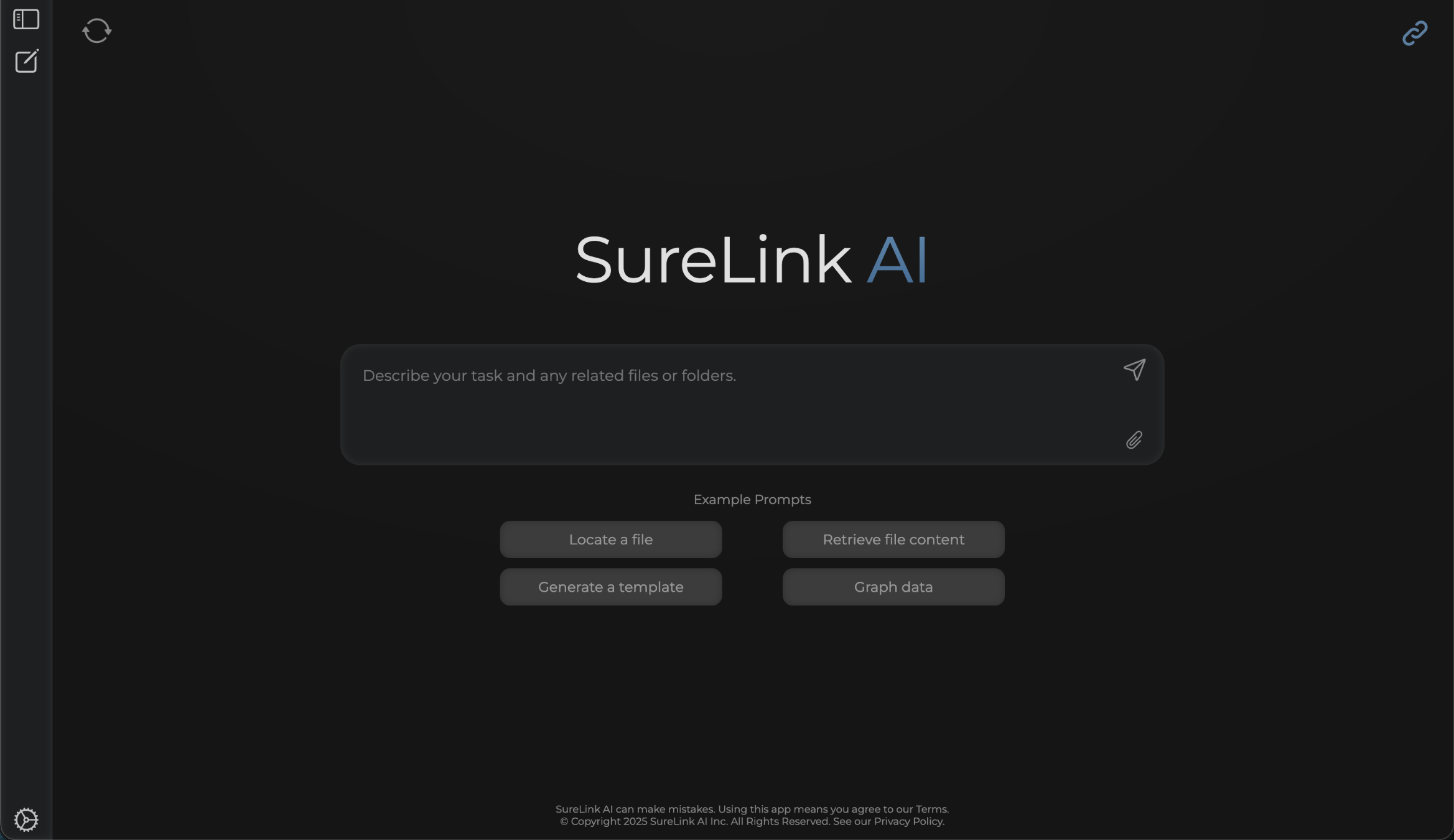
2. Find my files
In this example, I ask the system to find my profile image in my files. I am not sure where this image is so I need SureLink's help to quickly locate it so I can upload it to a social media platform.
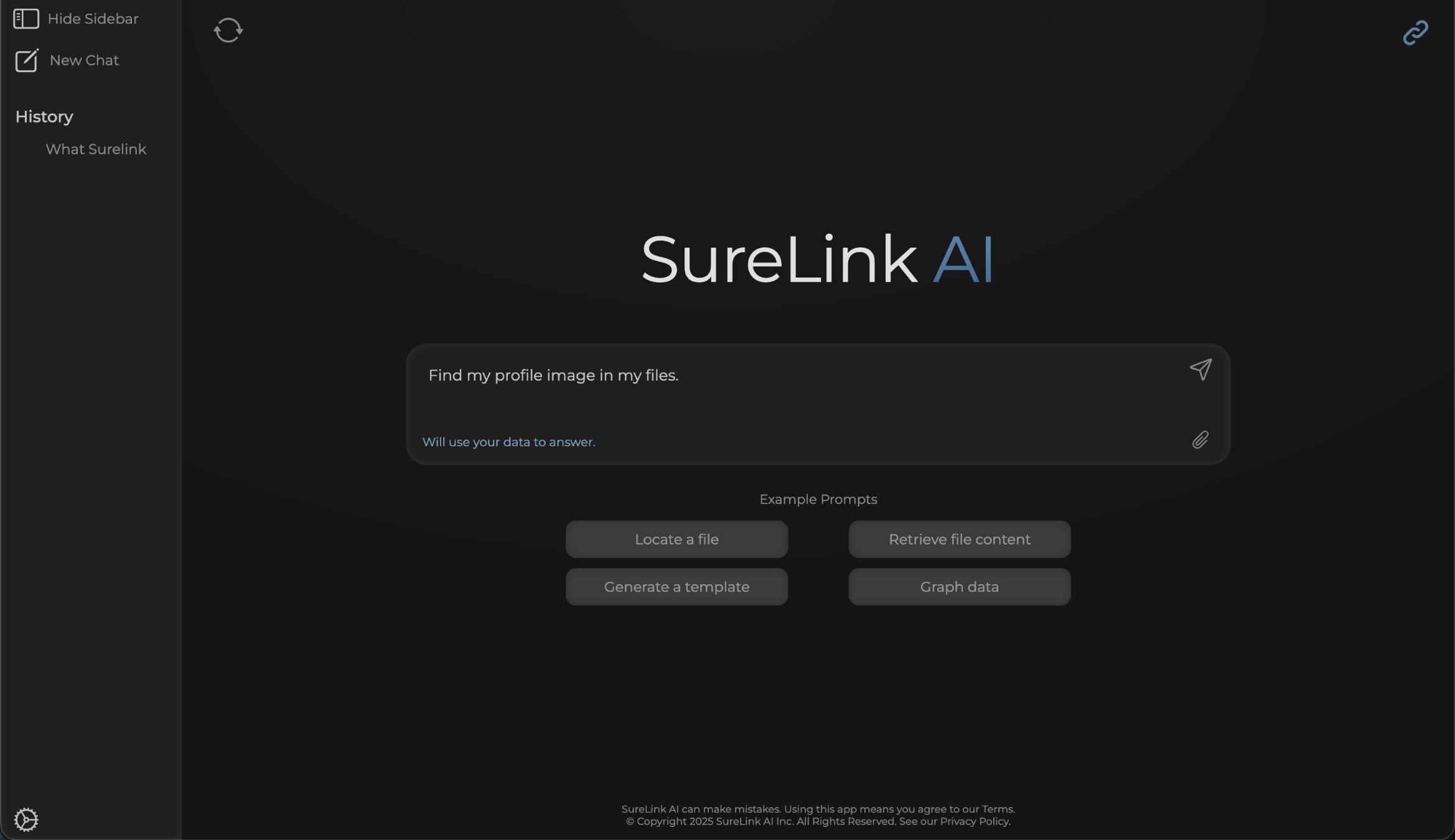
3. File Located
You can see that SureLink AI was able to find several links related to profile pictures. The first link was the image I was looking for which is great! I can then select the link to open the image or I can type in things like, Open the first link.' If the response is not what you are looking for, SureLink also provides instructions on how to get more detailed results. In this example, it suggests that I can point it to look at specific file names or folders. Since I got the image I needed, let's move onto another example prompt.
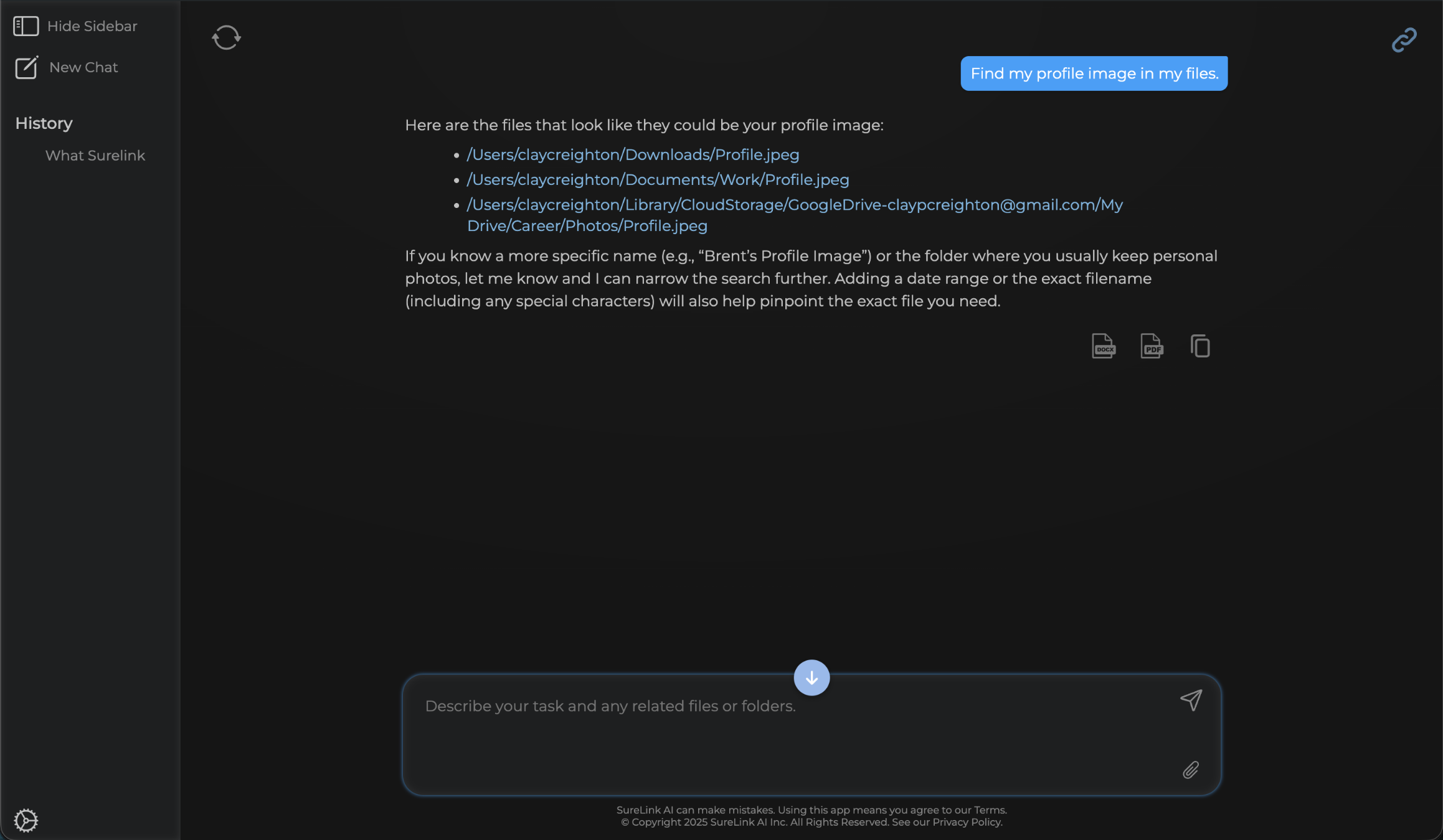
4. Click New Chat
Be sure to Click New Chat anytime that you switch topics. This will ensure the AI gives you the most accurate answers.
5. Retrieve File Content
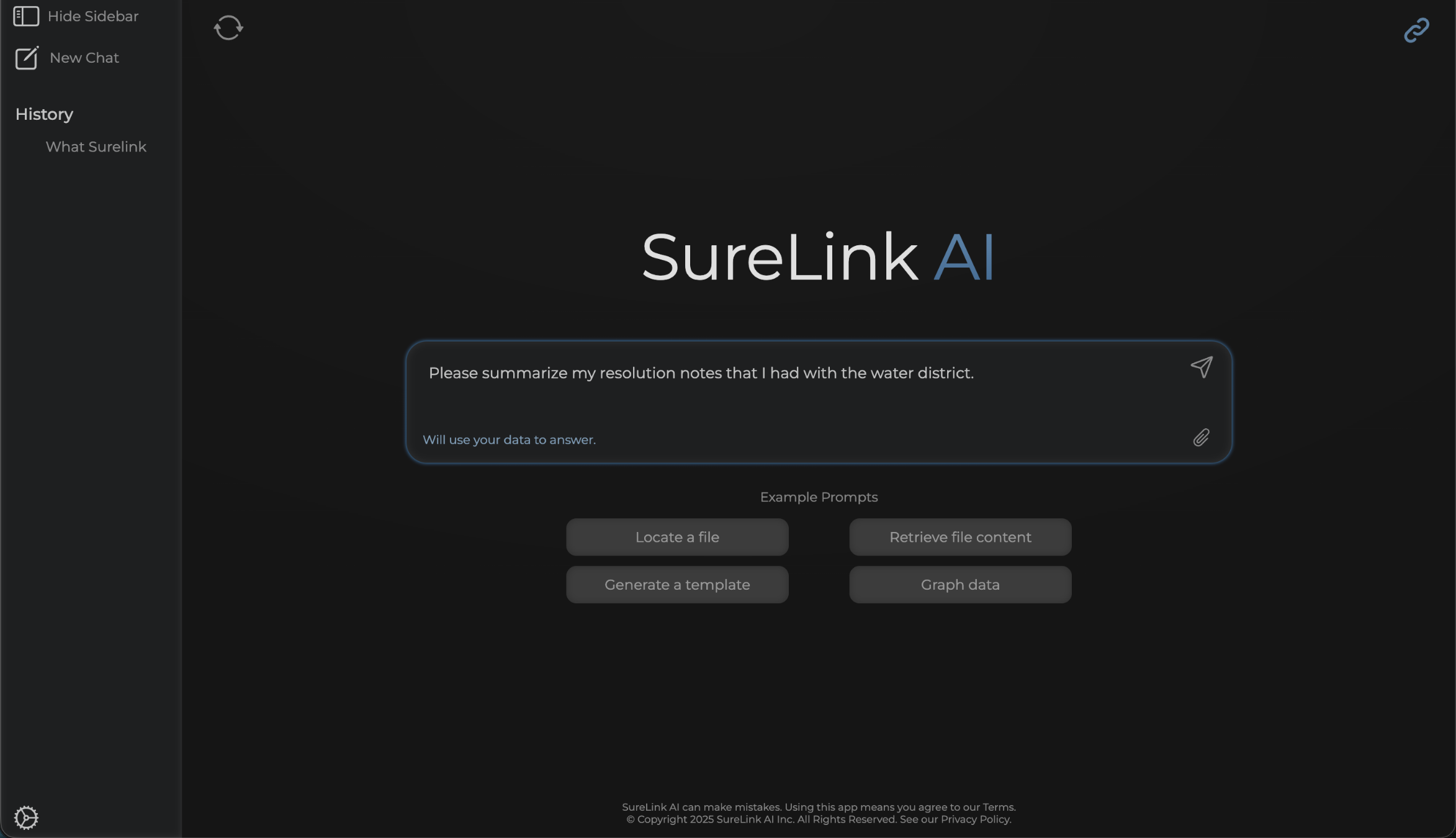
For our next example, we want the system to not only find a file, but we will ask it to summarize content within the file. Let's ask it to summarize my resolution notes that I had with a water district and see what happens.
6. File Content Located
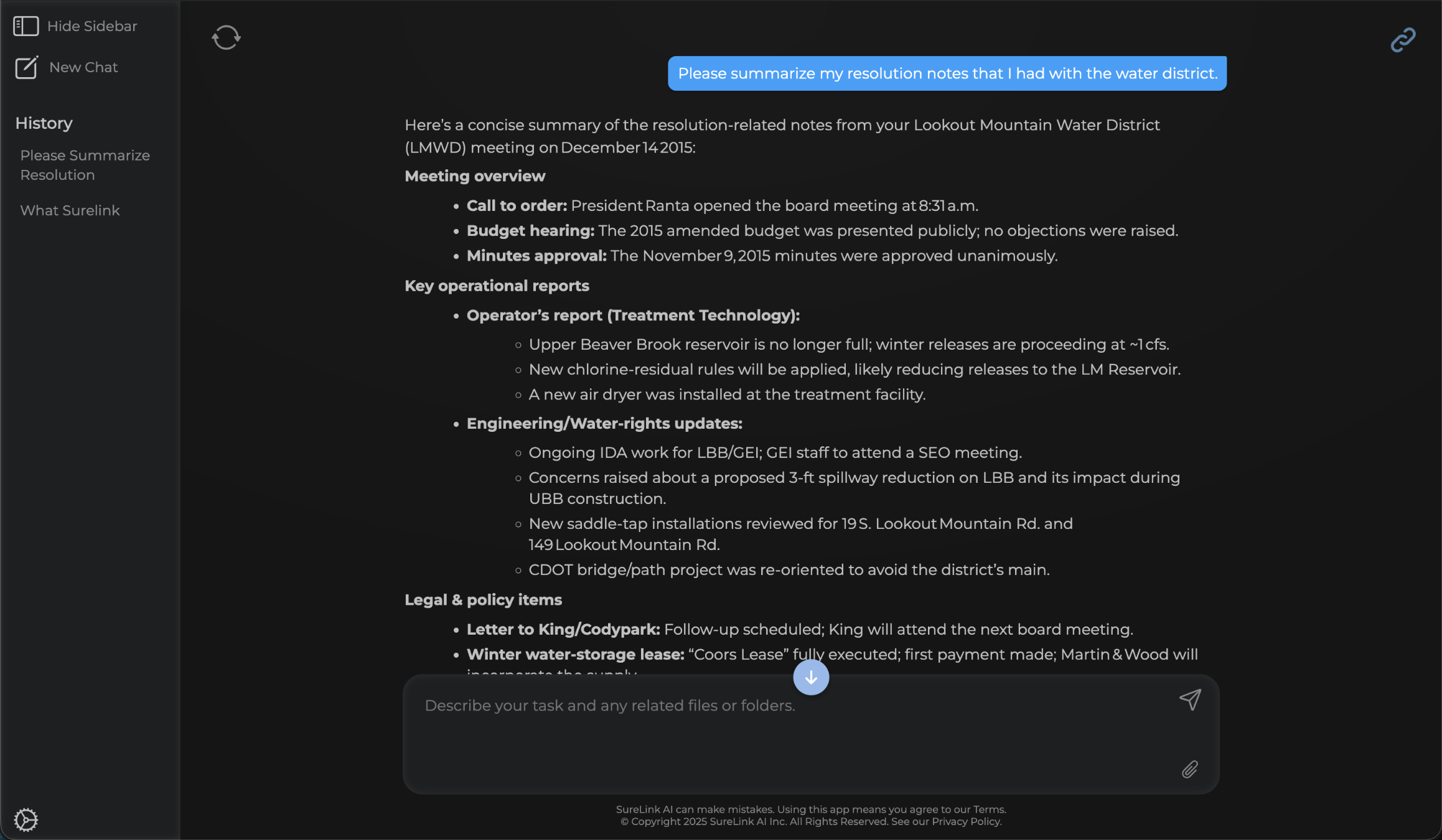
Perfect! It was able to locate the content and provide a useful summary of the resolution notes. You can see that it highlights key topics such as meeting overview, key operational reports, and Legal & policy items.
7. Graphing Prompt
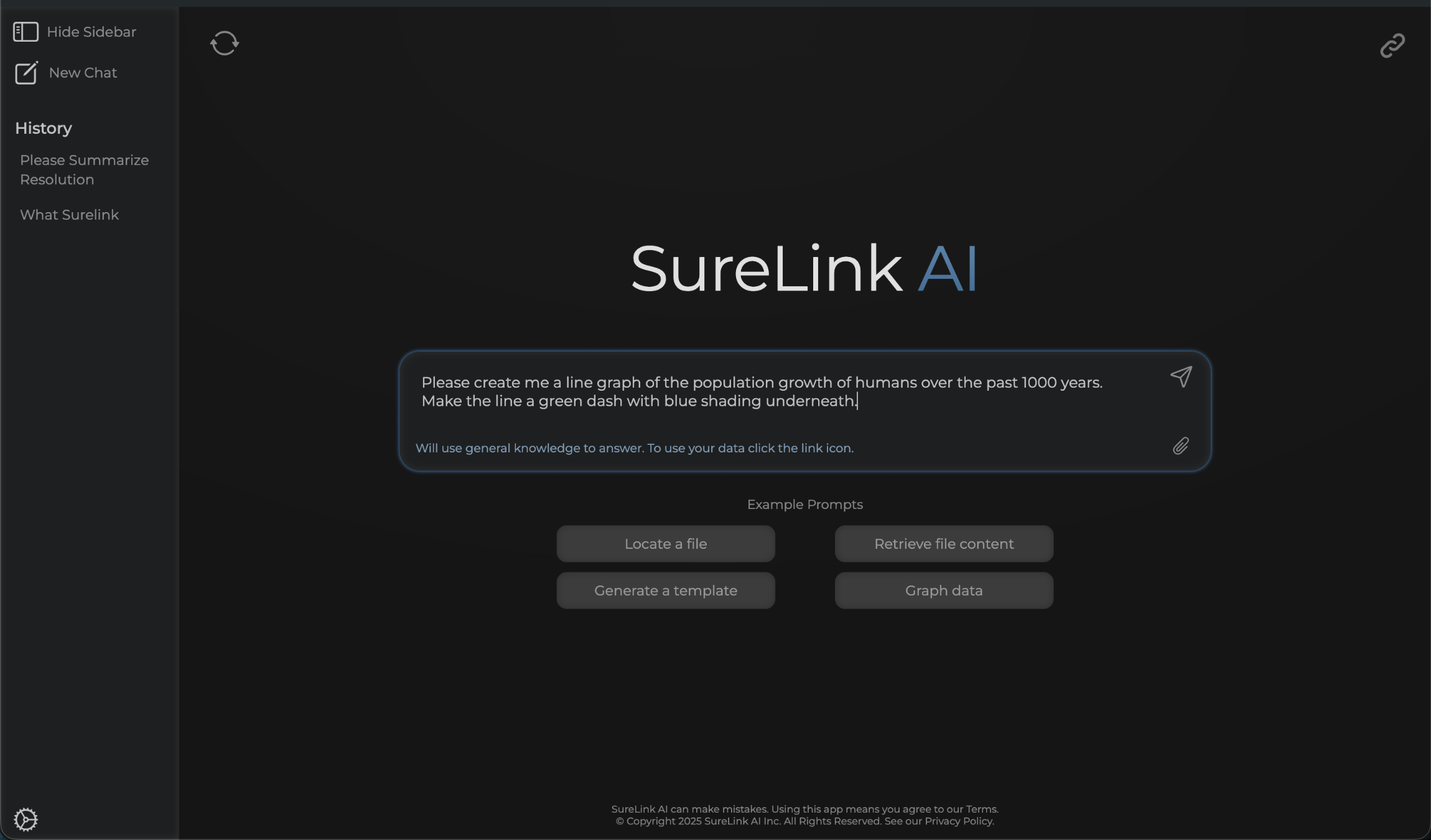
Next up, let's try to create a graph using SureLink. In this example, I will turn off my linked data, which is located in the top right. I do not need my linked data because this is a general inquiry that does not require my data. I will ask the system to create me a line graph of the human population growth over the past 1000 years. I also added some specific instructions for how the graph should look. Let's see what happens!
8. Graphing Data
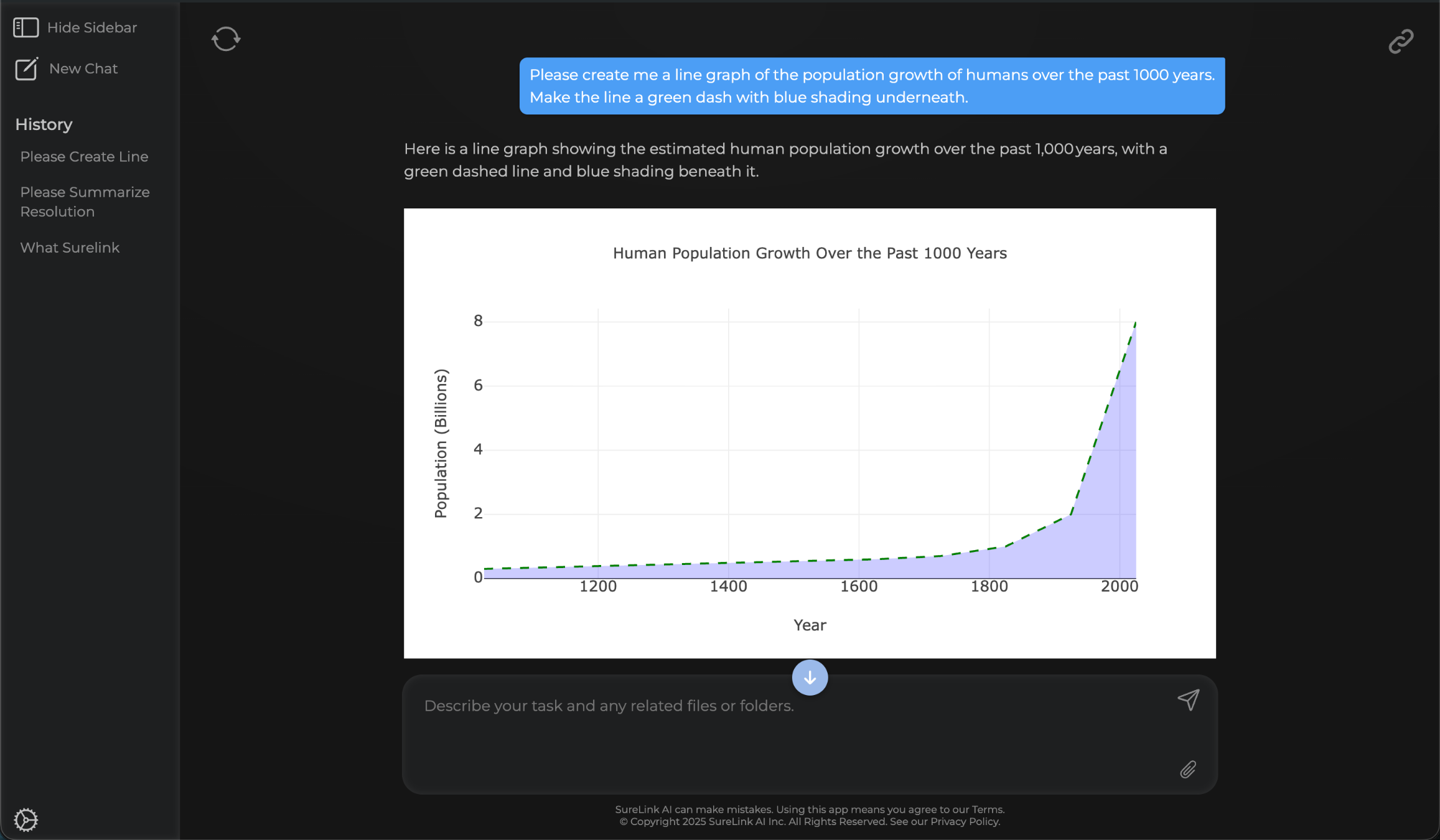
Ok great, it created the graph and followed my instructions! I can now copy and paste this graph into my powerpoint to get ready for my upcoming presentation.
This guide walked you through prompting within SureLink AI. Thank you from the SureLink AI team